Doug Engelbart is widely credited as the inventor of the computer mouse. Of course, as with most inventions, nothing happened in a vacuum and before the device that gave birth to the modern mouse was thought up, there were several exceptionally similar devices around. For the full story of the invention of the computer mouse, we’ll begin by backtracking slightly to a British engineer whose invention was subsequently classified as a military secret and hidden from the public.
That engineer was Professor Ralph Benjamin who, while working for the Royal Navy Scientific Service, invented a device that functioned in an almost identical fashion to a trackball mouse way back in the mid 1940s. According to a 2013 interview with Dr. Benjamin, he was tasked by the Royal Navy with helping develop something called the Comprehensive Display System, an early computer system that could calculate the theoretical trajectory of monitored aircraft based on the inputs of a user.
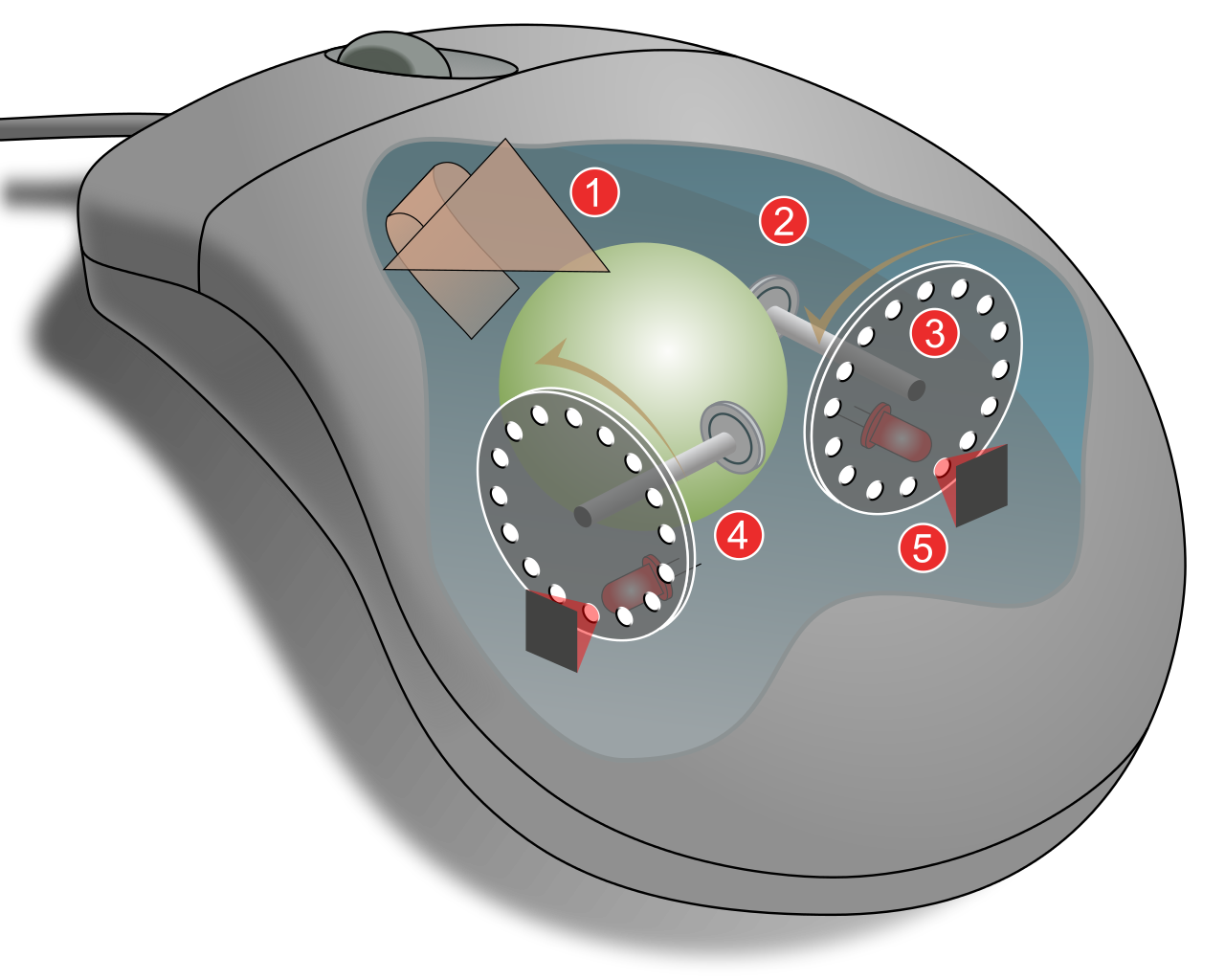
The cursor on the screen was controlled by a simple joystick mechanism that Benjamin felt could be improved. After some tinkering, he came up with something he dubbed the “Roller Ball” which functioned almost identically to a standard mechanical mouse, with an outer ball that would in turn manipulate two rubber coated wheels inside, one for the X axis and one for the Y. This movement was then translated into the appropriate movement of the cursor on the screen. So why don’t people say the good professor invented the mouse? Beyond that it wasn’t Benjamin’s device that gave birth to the modern mouse, rather than having the desk or whatever object move the ball via friction as one moves the mechanical mouse, in Benjamin’s device, your hand simply directly moved the ball itself, with the top of the device exposing said ball- essentially it was a large, upside down, stationary mechanical mouse.
Although Benjamin’s device was more precise than a joystick, it was never widely implemented and the Comprehensive Display System continued to be controlled by said joystick. Due to its status as a military secret, Benjamin received little to no credit for the invention of essentially a trackball mouse and he remains an obscure figure in computing history, despite the innovative nature of the device he pioneered.
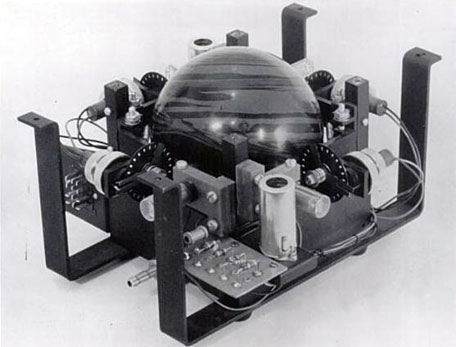
A similar device was also developed independently of Benjamin’s design in 1952 by a company, Ferranti Canada, working as contractors for the Canadian Defence Research Board. The company was, amongst other things, tasked with creating an input device for computers on a budget of “basically zero dollars”. Three engineers working for Ferranti, Tom Cranston, Fred Longstaff and Kenyon Taylor, came up with the idea of using a ball housed in a casing that remained in constant contact with four wheels positioned around it. When the ball was rolled in a given direction, the movement of the wheels would be translated to corresponding cursor movements on the screen- essentially this was a four-wheeled version of Benjamin’s device. As a testament to the low budget the engineers had to work with, rather than constructing a trackball from scratch, they simply used a 16 cm (about 6 inch) diameter five-pin bowling ball. Because the device was invented for the military, it too was designed in secret.
Ironically, in one notable way these, and other similar trackball devices that were invented before the mouse, were more similar to the once ubiquitous ball version of a mechanical mouse than Doug Engelbart’s first mouse. You see, Engelbart’s mouse didn’t use a ball at all, instead having two perpendicular wheels directly contact the table instead of using a ball to manipulate said wheels. While still functional, Engelbart’s design had the downside of making it so one wheel was always at least partially being scraped along the surface of the desk. But we’re getting ahead of ourselves a little.

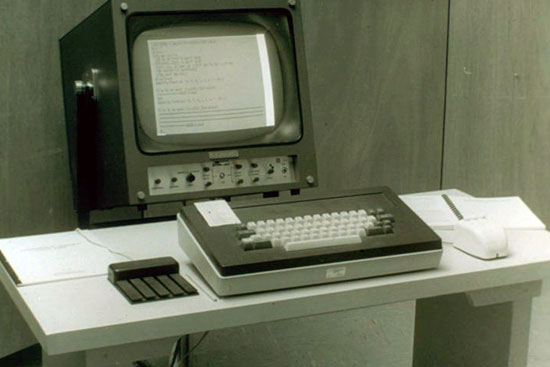
Engelbart developed what is the direct ancestor of the modern mouse in the 1960s as part of an ongoing project to discover the most efficient way to interact with a computer. Engelbart felt that the current devices in use at the time, mainly keyboards, joysticks and light pens, were inefficient. With the help of engineer Bill English (who designed the actual hardware for the first mouse based on Engelbart’s idea), he developed a handheld device that housed two perpendicular wheels the movements of which would control the on-screen cursor. Essentially, this more or less worked like an upside down, hand held version of the two previously mentioned stationary trackball devices, but without the ball.
Engelbart thought up the idea for this device in 1961. The first prototype was created by English in 1964. In 1966, Engelbart and English approached NASA asking them to fund a study to determine which input device was the most intuitive and efficient for controlling a cursor. According to Engelbart, the devices proposed to be tested, besides the mouse, were the “light pen… tracking ball and slider on a pivot”. The space agency agreed and a series of tests were carried out.
Engelbart noted of the tests, “We set up our experiments and the mouse won in every category, even though it had never been used before [by the test subjects]. It was faster, and with it people made fewer mistakes. Five or six of us were involved in these tests, but no one can remember who started calling it a mouse. I’m surprised the name stuck.” (Engelbart later explained it was called a mouse due to the fact that initially they had the wire come out of the bottom like a little tail. They switched it to the top to get around one’s arm getting tangled in the cord all the time.)
At the Fall Joint Computer Conference in San Francisco on December 9, 1968, Engelbart presented this mouse to over a thousand computer engineers in one of the most influential computing presentations of all time, later dubbed the The Mother of All Demos. Besides the mouse, Engelbart and his colleagues also demonstrated in one system a number of revolutionary concepts that are now a staple of modern computing, including hypertext, video conferencing via a high speed modem, shared screens via a network (where control could be passed back and forth), a form of windowed computing, word processing, real time digital text editing with multiple people able to edit files at the same time (with revision control), and several other forms of networked collaboration. Further, at a time when the idea of a personal computer was a little outlandish, he also demoed how such a system could be used for various personal computing needs, like maintaining a grocery list with robust organizational features built into the word processor to manage such lists. (You can watch highlights of this phenomenal time capsule of a presentation here.)
Before the presentation, some who’d heard of what Engelbart was working on had dubbed him a “crackpot”. After the presentation, Engelbart received a standing ovation and was described by later Xerox PARC employee, Chuck Thacker, as “dealing lightning in both hands”. However, demonstrating a system amazingly far ahead of its time left some skeptical that his team’s “oNLine System” (NLS, developed with funding from DARPA) could actually do what they’d demonstrated. One such individual was famed computer scientist Andries van Dam, who furiously berated Engelbart after the presentation, stating, “It’s irresponsible and unethical for you to show something you put together for a demo and pretend it actually works!” To which Engelbart stated, “No, I told him, it’s real. He just wouldn’t believe it until he got to SRI and saw it for himself.”
Despite very publicly debuting the mouse to the best minds of the computing world in 1968, Engelbart’s part in its invention, and even the monumental presentation itself that greatly influenced so much of the coming decades of computer development, were largely forgotten.
And so it was that, like so many other inventors before him, Engelbart did not receive the credit for his invention (initially), and Bill English even still receives little credit to this day. This, despite that fact that several years later English would go on to invent the mechanical mouse that featured a ball to control the X/Y wheels, which would become the general design of just about all mice until the rise of things like optical mice.
Beyond receiving little credit, because Engelbart and English were working for Stanford Research Institutewhen they developed the first mouse, the eventualpatent that was granted for it in 1970 didn’t belong to them. Thus, the pair got no money for their invention other than their normal paychecks. Stanford Research Institute reportedly did make some money off the patent before it expired in 1984, for instance reportedly profiting $40,000 ($130,000 today) when they licensed it to Apple.
Speaking of Apple, the mouse as we know it today rose from obscurity thanks to Steve Jobs being Steve Jobs- i.e. finding an existing technology, hiring someone to copy it but with very subtle usability tweaks, geniously marketing it, and then later getting much of the public credit for it. In this case, in 1979, Jobs agreed to give Xerox a certain number of Apple shares in exchange for allowing him to come see what Xerox’s Palo Alto Research Center (PARC) was working on.
When Jobs went on a tour of the research centre, he encountered a prototype version of the mouse (the ball-mechanical mouse invented by Bill English, who was now working for Xerox PARC). Jobs recognised the potential of the device immediately, and, according to Larry Tesler, the engineer who demonstrated the mouse to Jobs, “He [Jobs] was very excited. Then, when he began seeing the things I could do onscreen, he watched for about a minute and started jumping around the room, shouting, ‘Why aren’t you doing anything with this? This is the greatest thing. This is revolutionary!’”
As it turns out, Xerox was doing something with the device and had been selling the Xerox Alto along with a trackball mouse since 1973 and would later package it with the Xerox 8010, released in 1981. However, higher ups in the company didn’t seem to properly appreciated how innovative their system was. As Jobs would later note, “If Xerox had known what it had and had taken advantage of its real opportunities, it could have been as big as I.B.M. plus Microsoft plus Xerox combined—and the largest high-technology company in the world.”
Jobs, stunned at this lack of vision, rushed back to Apple and had his team developing the next iteration of the company’s personal computer line completely revamp their plans, demanding a window-based system with the mouse as a key component. According to Dean Hovey, Jobs explained to him later that week
[The Xerox mouse] is a mouse that cost three hundred dollars to build and it breaks within two weeks. Here’s your design spec: Our mouse needs to be manufacturable for less than fifteen bucks (about $50 today). It needs to not fail for a couple of years, and I want to be able to use it on Formica and my bluejeans.
Hovey then explained, “From that meeting, I went to Walgreens… and I wandered around and bought all the underarm deodorants that I could find, because they had that ball in them. I bought a butter dish [for the body of the mouse]. That was the beginnings of the [Apple] mouse.”
As for why the Apple mouse only had one button, unlike other mice of the day (for instance, the original had three buttons, which after much research Engelbert and his team determined was the ideal number), Hovey stated “There were disputes around the number of buttons—three buttons, two buttons, one-button mouse. The mouse at Xerox had three buttons. But we came around to the fact that learning to mouse is a feat in and of itself, and to make it as simple as possible, with just one button, was pretty important.”
Apple’s first take on the mouse came bundled with the relatively obscure Apple Lisa computer. (This was named after Job’s daughter who he denied was his until 1987, despite that a paternity test confirmed Lisa was his daughter and she and her mother were living in poverty, while he simultaneously was naming Apple Lisa after her). This first Apple mouse featured a steel ball to drive the internal tracking wheels. The design was overhauled once again (notably using a rubber ball) for the more popular Apple Macintosh computer released in 1984 which became one of the first commercially successful devices to make use of a mouse. Microsoft also came out with their own mouse in 1983 for the PC, in-between Apple Lisa and the much more famous Macintosh 128K, but it was the latter that subsequently spurred the widespread adoption of the mouse.
After the success of the Macintosh, other companies followed suit and the mouse became a staple of the personal computer. Despite many at various times over the decades since predicting that the mouse wouldgo the way of the Dodo “any day now” (most recently because of the rise of the popularity of touch screens), the mouse is still going strong with seemingly no real end in sight.